
In today’s dynamic work environment, uninterrupted access to virtual apps and desktops is crucial for maintaining productivity and business continuity. Citrix DaaS Service Continuity is a feature designed to ensure just that. By enabling users to access their resources even during control plane disruptions or network issues, this feature guarantees seamless workflows and minimized downtime.
In this blog, we’ll explore what Citrix DaaS Service Continuity is, its benefits, and how to configure it for your environment.
What Is Citrix DaaS Service Continuity?
Service Continuity ensures uninterrupted access to Citrix-hosted virtual apps and desktops by caching critical connection data on the user’s device.
This cached data, called Workspace Connection Leases (WCLs), allows users to launch resources directly, even if the Citrix Cloud control plane is temporarily unavailable or network connectivity is compromised.

Key Benefits
- Business Resilience: Keeps operations running smoothly during outages.
- Improved User Experience: Reduces frustration from access interruptions.
- Reduced Help Desk Calls: Eliminates unnecessary support tickets caused by temporary service disruptions.
- Easy Configuration: Streamlined setup process integrates seamlessly with existing Citrix environments.
How to Configure Citrix DaaS Service Continuity
Setting up Service Continuity is straightforward. Follow these steps to enable it in your Citrix environment:
Step 1: Ensure Prerequisites Are Met
Before enabling Service Continuity, ensure the following:
- You are using Citrix Workspace app version 2109 or later.
- Your Citrix DaaS environment is updated to the latest release.
- Workspace Connection Leases (WCL) are enabled in your environment.
Step 2: Enable Service Continuity in the Citrix Cloud Console
- Log in to your Citrix Cloud console.
- Navigate to Workspace Configuration > Service Continuity.
- Toggle the feature to “On.”
- Specify the Connection lease period, which determines how many days a Workspace Connection Lease remains valid for maintaining a connection.

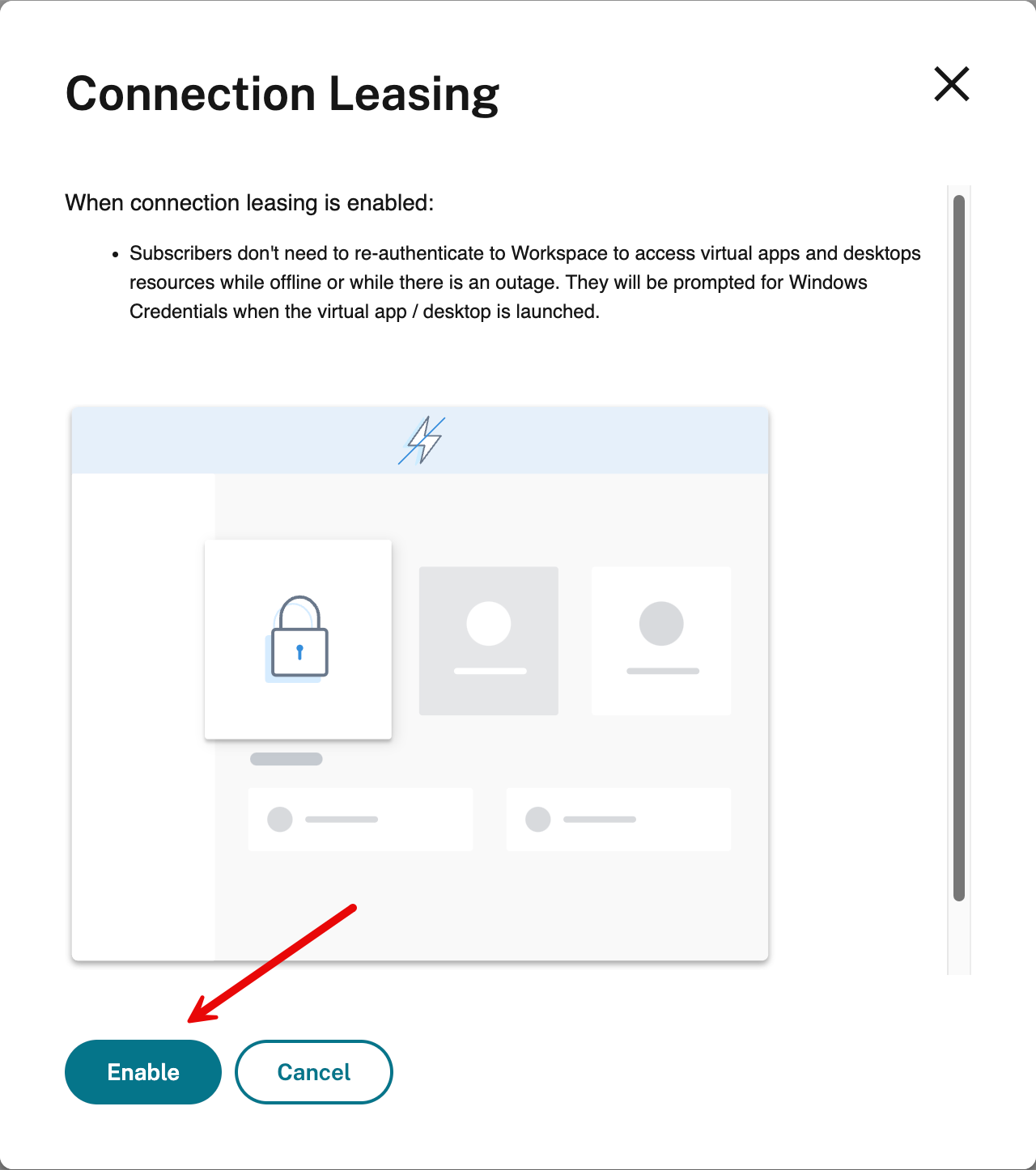
Step 3: Disable Service Continuity on specific Delivery Groups
When you enable service continuity, it is enabled for all delivery groups in your site.
- Install the Remote PowerShell SDK availlable for download under https://www.citrix.com/downloads/citrix-cloud/product-software/xenapp-and-xendesktop-service.html
- Make sure you do not install the SDK on your Cloud Connectors as Citrix does not support it.
- To disable service continuity for a delivery group, use the following PowerShell command: (replace <deliverygroup> with the name of the Delivery Group.
- Launch PowerShell
Get-XdAuthentication- Set-BrokerDesktopGroup -name <deliverygroup> -ResourceLeasingEnabled $false
- By default, Workspace Connection Leases are removed from user devices when users sign out of Citrix Workspace during an outage. To retain these leases on user devices after sign-out, execute the following PowerShell command:
- Launch PowerShell
Get-XdAuthenticationSet-BrokerSite -DeleteResourceLeasesOnLogOff $false
Step 4: Test the Configuration
- Disconnect your network or simulate a control plane outage.
- Attempt to launch a virtual app or desktop using the Citrix Workspace app.
- Ensure the resource launches seamlessly from cached data.
How Citrix DaaS Service Continuity Works
To fully appreciate the power of Citrix DaaS Service Continuity, it’s important to understand how this feature operates behind the scenes. Here’s an overview of its key mechanisms:
Workspace Connection Leases (WCLs)
Service Continuity relies on Workspace Connection Leases, which are cached on the user’s device. These leases contain critical connection details, allowing users to launch their virtual apps and desktops without relying on the control plane.
What Happens During Normal Operation?
When a user connects to their workspace, Citrix Cloud generates a Workspace Connection Lease and securely caches it on the user’s device. These leases are periodically refreshed to ensure they remain valid.
What Happens During an Outage?
If the Citrix control plane becomes unavailable or there’s a connectivity issue, the Workspace Connection Lease enables the Citrix Workspace app to establish a direct connection to the virtual resource. This ensures uninterrupted access until the control plane or network is restored.
Local Caching on User Devices
The leases are securely stored locally on the user’s device, ensuring that they remain available even during network disruptions. To enhance security, you can configure the behavior of these leases, such as whether they are retained after users sign out.
Intelligent Fallback Mechanisms
When a user launches a resource:
- The Citrix Workspace app first checks for control plane availability.
- If the control plane is unreachable, the app automatically switches to using the cached Workspace Connection Lease.
- Once connectivity is restored, the system seamlessly transitions back to normal operation, updating the leases as needed.
Service Continuity in Browser (Credit to Virtualization Hacks for the tip)
Extensions for Google Chrome and Microsoft Edge enable service continuity for Windows users accessing apps and desktops through these browsers. These extensions, known as the Citrix Workspace Web Extension, can be downloaded from the Chrome Web Store or the Microsoft Edge Add-on site.
The browser extensions work in conjunction with the native Citrix Workspace app installed on the user’s device. This integration leverages the native messaging host protocol, allowing seamless communication between the native app and the browser extension. Together, they utilize Workspace Connection Leases to ensure uninterrupted access to apps and desktops during outages.
To enable service continuity in a browser, users need to complete the following steps on their devices:
- Download and install a version of Citrix Workspace app that is supported for browser users.
- Download and install the Citrix Workspace Web extension for Chrome or Edge.
Best Practices for Service Continuity
- Regularly update the Citrix Workspace app across all devices to maintain compatibility.
- Monitor your environment for potential configuration changes that may impact Service Continuity.
- Educate end-users about Service Continuity to avoid unnecessary concerns during outages.



 Daniel Ruiz
You must be logged in to post a comment.