While working on a new XenApp 6.5 Deployment with Citrix Provisioning Services, I noticed the Citrix PVS Target Tools icon in the system tray when connecting to a Full Desktop session, this could be confusing or useless information for users.
Environment:
- Windows 2008 R2
- Citrix XenApp 6.5 Hotfix Rollup Pack 2
- PVS 6.1.16
- StoreFront 2.0
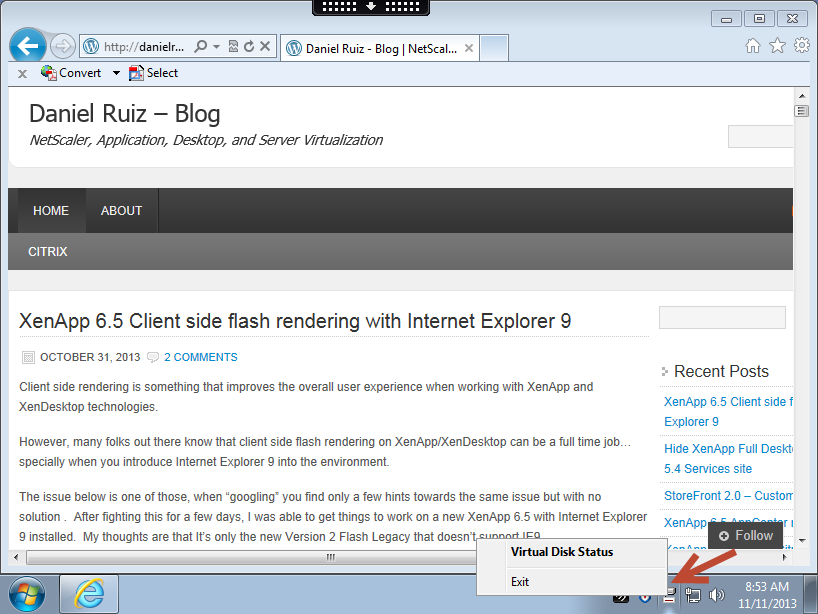
After researching the web a bit, I came across this HKLM key from Jack Cobben described in his blog Hide Virtual Disk Tray Icon where it simply stated to add the reg hive below.
HKLM\Software\Citrix\ProvisioningServices\Status “ShowIcon” (DWORD) 0
This however will disable to all users, even Admins, and I wanted to be able give administrators the option to see the icon.
Solution:
Apply the HKCU key below to your profile solution based on Group membership
Windows Registry Editor Version 5.00
[HKEY_CURRENT_USER\SOFTWARE\Citrix\ProvisioningServices]
“StatusTray”=dword:00000000
Once that is in place the icon will go away.







 Daniel Ruiz
Leave a reply to Cahit Tolga Darcan Cancel reply