Following up on my instructions on how to Customize the new version of Citrix StoreFront 2.6. Below is how you can create your own Citrix NetScaler Gateway customization package , and ensure your changes are not lost when the appliance is rebooted.
Environment:
- Windows 2008 R2
- Citrix XenApp 6.5 Hotfix Rollup Pack 2
- PVS 6.1.16
- StoreFront 2.6
- Citrix NetsScaler 10.5: Build 53.9.nc
- RSA for dual factor
Now in my case, we are utilizing RADIUS for secondary authentication. After creating the AGEE site, make sure the site is set to “Green Bubble” under “NetScaler” “Global Settings” Change Global Settings” , then head over to the “Client Experience” Tab, and select “Green Bubble” under the “UI Theme”
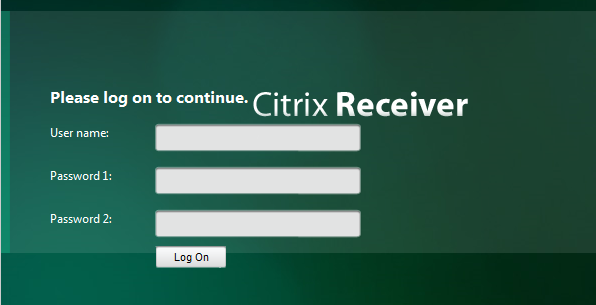
Once complete, your site will look something similar to the picture below.


Now lets customize the following
- Logo
- First Authentication box
- Second Authentication box
- Fix Compatibility issues with Internet Explorer 11
Solution: (Connect to your NetScaler via WinSCP)
1. Copy the vpn folder from /var/netscaler/gui/ to your local desktop
2. Edit “login.js” under /var/netscaler/gui/vpn to fix the “Password 1” entry
Around line 93
Replace
if ( pwc == 2 ) { document.write(‘ 1’); }
With
if ( pwc == 2 ) { document.write(‘ ’); }
3. Upload your company logo under under /var/netscaler/gui/vpn/media
4. Update “ctxs.authentication.css” under /var/netscaler/gui/vpn/css to update your logo and height and width where the logo will be placed
In my case, our company logo was bigger than the logo provided by Citrix. So I needed to modify the height and the width.
Around line 210
#logonbox-logoimage
{
background-image: url(“../media/company_logo.png”);
border: 0 none;
float: right;
height: 48px;
position: absolute;
right: 71%;
top: 80px;
width: 273px;
}
5. Update “en.xml” under /var/netscaler/gui/vpn/resources to change “Password 2:” for the secondary authentication box
Around line 83:
Replace
<String id=”Password2″>Password 2:</String>
With
<String id=”Password2″>RSA Code:</String>
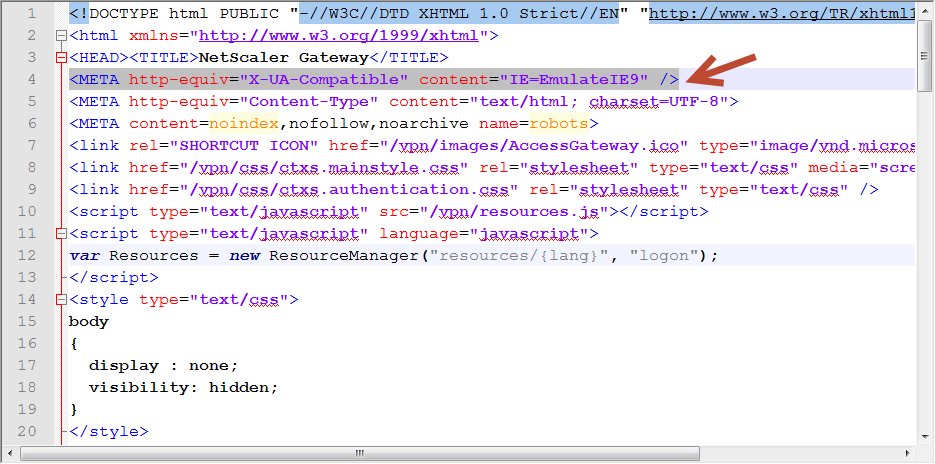
6. Fix the Internet Explorer 11 compatibility issue, the quick fix is to tell IE11 to use compatibility mode, however you can force the NetScaler page to emulate IE v.9, you can read more about this under http://stackoverflow.com/questions/6771258/whats-the-difference-if-meta-http-equiv-x-ua-compatible-content-ie-edge-e
Edit index.html under /var/netscaler/gui/vpn
Under line 4 place
<META http-equiv=”X-UA-Compatible” content=”IE=EmulateIE9″ />
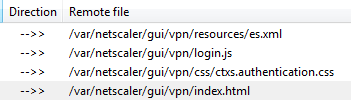
7. Upload your modified files and logo
8. Head over to your site and make any corrections. once you are happy with the results, create your custom package
Open Putty and log in as nsroot, then type (Note the name of the compressed file, this needs to match “customtheme.tar.gz“)
- shell
- mkdir /var/ns_gui_custom
- cd /netscaler
- tar -cvzf /var/ns_gui_custom/customtheme.tar.gz ns_gui/*
9. Now apply the package to your AGEE sites
- In the configuration utility, under the Configuration tab, expand “NetScaler Gateway” and then click “Global Settings“.
- In the details pane, under Settings, click Change global settings.
- In Global NetScaler Gateway Settings, click the Client Experience tab.
- Next to UI theme, click Custom and then click OK.
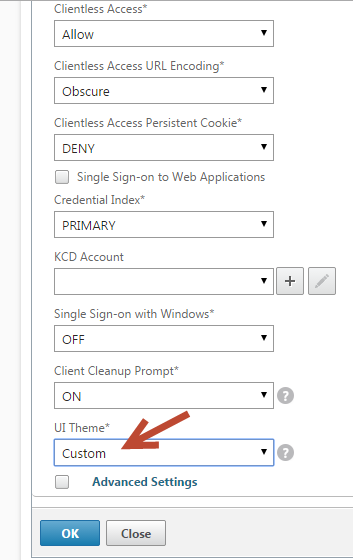
10. Reboot the NetScaler and you will notice your changes are intact.





 Daniel Ruiz
Leave a reply to NetScaler Gateway front page à la StoreFront 3.0 | Daniel Ruiz – Blog Cancel reply